Are you trying to decide which satellite TV provider you should choose and what are the benefits of each? We are going to break each one down as much as possible including the content and channels you get with each and the price and cost involved.
Openview offers a free satellite TV service, all you have to do is buy the decoder and install a dish system and you get access to all the e-TV channels, while DSTV offers a number of DSTV packages, but for the purpose of this comparison we are going to compare the cheapest option, the DSTV Easyview option to Openview HD.
DSTV’s Easyview option costs R29 per month and you get 37 channels.
The easiest way to compare the two is in a table:
Description
Openview
DSTV Easyview
Monthly Price
Free
R29
Decoder Price
R1399 ( HD Decoder with satellite dish installation ) R599 ( HD Decoder only )
So if we compare the two just in the numbers then we get:
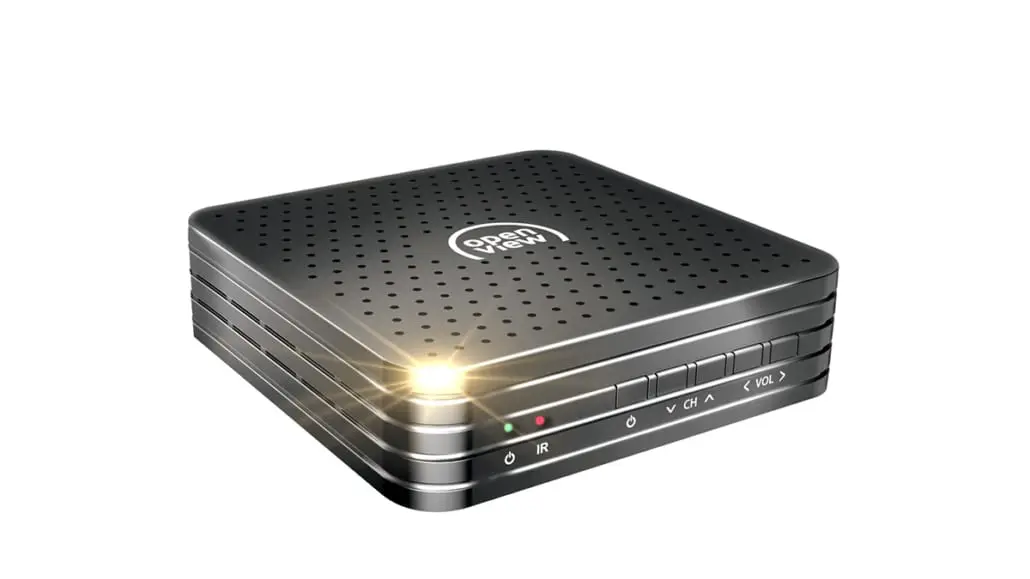
Openview HD Decoder
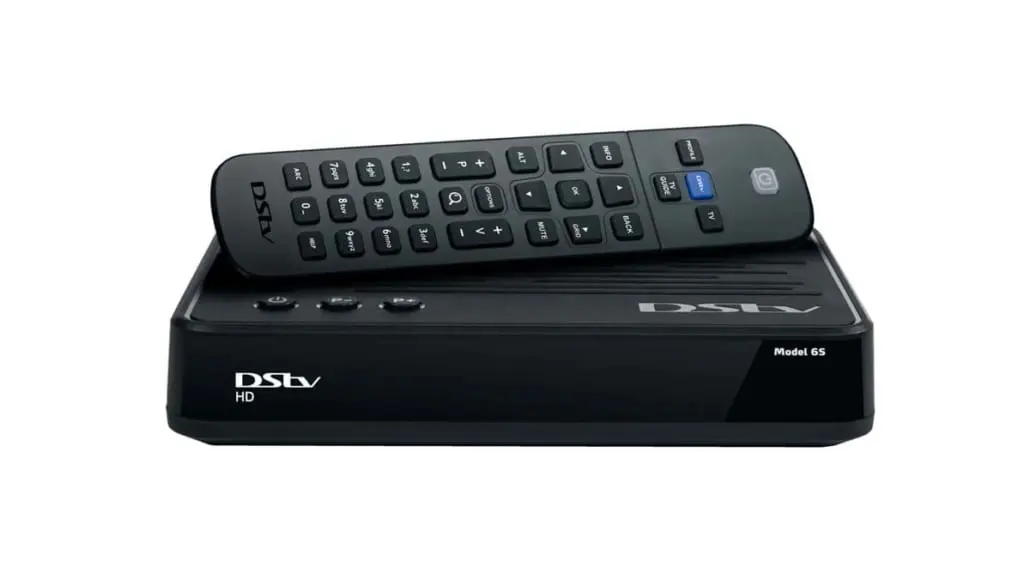
DSTV HD Decoder
Description
Openview
DSTV Easyview
Monthly Cost
Free
R29
Decoder Cost
R1 399 ( HD Decoder with satellite dish) R499 ( HD Decoder only, excludes dish and installation )
R599 ( HD Decoder )
Installation Cost
Decoder and Dish comes with installation voucher
R649 with Installation voucher from GAME
Channels
19
37
So if you are looking for more channels then you should choose DSTV Easyview
However it is not as simple as that. We think it is important to know what kind of TV you like to watch before you decide.
If you like watching movies then Openview has more dedicate movie channels such as eMovies and Movies Extra.
If you like sport it is a bit tricker. If you enjoy all different kinds of sport then DSTV’s Supersport Blitz is a great option for highlights and news. If you mainly just love soccer then Openview HD might be a better bet for you.
Openview recently announced that they it had acquired the broadcast rights for the English Premier League.
This allows the free satellite TV service provider to broadcast Premier League matches live on its News & Sports channel.
Openview plans to broadcast one live match every week, which will usually include one of the top six Premier League clubs – Arsenal, Chelsea, Liverpool, Manchester United, Manchester City, or Tottenham Hotspur. Please check with Openview to see if this is still the case when purchasing your Openview Decoder.
If you like faith based TV channels then DSTV is definitely your best option with their 5 religious channels.
Finally lets compare the costs involved. Openview HD offers a free monthly service but the decoder and installation cost is R1 399 for an HD Decoder, where DSTV’s decoder only costs R 599 for an HD Decoder.
So if you already have a satellite dish then the DSTV decoder is R 800 cheaper. This means that even though DSTV has a monthly cost of only R29 per month it will take 27 months ( i.e 2 years and three months ) before the cost of DSTV Easyview is the same as the Openview decoder cost.
For this reason we think that DSTV Easyview is cheaper than Openview HD.
Update: Openview now offers a HD decoder for only R499 that will work with your existing functioning satellite dish. This means that using this option Openview becomes the better and cheaper option. But if you already have a DSTV Easyview contract and decoder we would stick with that rather than changing.
Click here to find out about the other DSTV packages.
https://localdstvinstaller.co.za/wp-content/uploads/2020/04/Openview-vs-DSTV.png5891000LocalDSTVhttps://localdstvinstaller.co.za/wp-content/uploads/2018/02/no-300x141.pngLocalDSTV2020-04-04 10:07:372020-04-04 10:12:00Openview vs DSTV – Which Is Better For You?
The OpenView connection process is easy and hassle free. If you already have a satellite dish in place and would like to install and activate your decoder, here is a step-by-step guide on how to do just that. To connect your decoder to the satellite dish, you will need to connect the LNB cable from your satellite dish to the LNB IN or DISH IN slot at the back of your decoder. There are three ways to connect your decoder to your TV:
You can connect with an RCA Cable, an AV Mini Jack or an HDMI Cable
RCA Cable
If you are using an RCA cable connect the cables to the back of your decoder – matching the colours of the connectors to the colours of the ports (red to red, white to white and yellow to yellow).
Then, connect the other end of the cable to your TV. Make sure you are plugging them into the ports that are marked INPUT. Again, match the colours of the connectors to the colour of the ports (red to red, white to white and yellow to yellow).
If your TV does not have coloured ports, then plug the connectors in accordingly: yellow into VIDEO IN, white into AUDIO IN (L) and red into AUDIO IN (R) – if available.
AV Mini Jack
If you are using an AV mini jack cable, plug the single jack into the back of your decoder. Then, connect the other end of the cable to your TV.
Make sure you are plugging them into the ports that are marked INPUT. Match the colours of the connectors to the colour of the ports (red to red, white to white and yellow to yellow).
If your TV does not have coloured ports, then plug the connectors in accordingly: yellow into VIDEO IN, white into AUDIO IN (L) and red into AUDIO IN (R) – if available.
HDMI
If you are using an HDMI cable, then plug it into the HDMI port on the back of your decoder and then plug the other end into an HDMI port on your TV.
You will then need to switch to the relevant HDMI source/input channel on your television.
To power your decoder, you will need to connect the power cable to the decoder and connect it to a power source. Your decoder should then switch on and start scanning. Once scanning is complete you will see channel 100. Your decoder is now ready to be activated.
Click here to read about the DSTV packages available in 2020.
https://localdstvinstaller.co.za/wp-content/uploads/2020/04/Openview-Satellite-Tv-Decoder.jpg600600LocalDSTVhttps://localdstvinstaller.co.za/wp-content/uploads/2018/02/no-300x141.pngLocalDSTV2020-04-03 19:24:462020-04-04 08:39:50How To Connect Your Openview Decoder To Your TV
OpenView is a Free To View Direct Broadcast Satellite television provider in South Africa. In fact, OpenView was South Africa’s very first free-to-air satellite TV service. Today, OpenView has been installed and activated in over 1.9 million homes nationwide and is certainly showing no signs of slowing down anytime soon. Dedicated to being one of the leading direct broadcast satellite television providers in South Africa, OpenView aims to be the future of entertainment that is free and available to all people across the nation. With access to over 20 TV and radio channels (with some channels in HD), OpenView offers viewers an exciting selection of top local and international entertainment to provide you and your family with non-stop premium viewing.
Why is OpenView a great choice for you?
There are no monthly fees! OpenView only requires a once off payment
OpenView is compatible with existing dishes
It offers a wide range of top local & international shows and channels
You can record with Open PVR
You receive crystal clear picture quality anywhere in South Africa
OpenView includes a variety of HD channels
TV Channels & Radio Stations you will have access to on OpenView
With access to over 20 TV and radio channels (with some channels in HD), OpenView provides viewers with a wide range of premium entertainment to choose from. Thereby bringing non-stop world-class entertainment right to your home all across South Africa. OpenView gives you the opportunity to enjoy the very best in 24-hour A-grade Blockbuster Movies, Drama, Series, premium Kids’ Entertainment & Learning Channels, Reality TV, Sports and News. Not to mention a range of Bollywood, as well as Turkish and Indian telenovelas dubbed in English and Afrikaans. Some channels are also broadcasted in full high definition. It’s therefore safe to say that there is something for everyone to enjoy on OpenView!
With OpenView’s 100% coverage, you can get crystal-clear picture quality wherever you are in South Africa. As well as a whole lot more premium entertainment all without any monthly fees. In addition, OpenView will from time to time add or remove channels in order to further enhance their offering and improve viewer experience.
What Channels Do You Get Access To On OpenView:
SABC 1
SABC 2
SABC 3
tv (HD)
eExtra (HD)
eMovies (HD)
eMovies Extra (HD)
eReality (HD)
Rewind
Star Life (HD)
Fight Sports (HD)
News & Sport (HD)
BBC World News
eToonz (HD)
Mindset
Glow TV
Radio Stations you will have access to on OpenView:
YFM
Bok Radio
LM Radio
Gagasi FM
OFM
Heart FM
Radio Pulpit
Kaya FM
Trans Africa Radio
In addition, parents can also rest assured that OpenView has a parental control function. This means parents can lock programmes that they personally deem to not be suitable for their children by choosing an appropriate “Lock Level”, depending on the parental guidance rating of the programme. In order to active the Parental Control Function on OpenView, follow these steps by using your remote control:
Press the “menu” button
Go to “setting”
Follow the steps and prompts to activate the parental control function
Read our post on DSTV packages to compare or this post on DSTV’s EasyView Package vs Openview
What is Open PVR
In addition to OpenView HD, OpenView launched an exciting Open PVR service (personal video recorder), which allows OpenView subscribers with the latest decoder models to enjoy premium features on OpenView with the innovative Open PVR capabilities. Open PVR gives South African OpenView viewers the chance to record and store free-to-air content of their favorite shows without being restricted to watch them at a specific time. Thereby giving them the opportunity to watch their shows whenever they please at their own time.
In addition, Open PVR provides viewers with the exclusive opportunity to schedule recordings across a range of channels, through easy to use functionality. As well as pause live television for up to 15 minutes. Viewers will also be able to record one channel while watching another channel, thereby making sure they don’t miss out on a single second of the action and drama on their television screens.
How Much Does OpenView HD Cost
Here are the pricing options for OpenView: OpenView Decoder with Satellite: R 1399 OpenView Decoder: Openview decoder prices start at R499 at leading retail stores nationwide. Open PVR: R 199 OpenView HD with Dish, Decoder & Installation: R 1599
By far one of the greatest features of OpenView is the fact that there are NO monthly fees and no contracts! Yes, you read that right! You just pay a once off fee for your decoder and dish (that’s if you don’t already have an existing dish installed), plug it in, install and activate it and you are good to go, and free to sit back, relax and enjoy crystal clear satellite TV right at your finger-tips in the comfort of your own home anywhere in South Africa.
How to connect to OpenView
The OpenView connection process is easy and hassle free. If you already have a satellite dish in place and would like to install and activate your decoder you can do so with a RCA Cable, a AV Mini Jack or an HDMI cable.
To connect your decoder to the satellite dish, you will need to connect the LNB cable from your satellite dish to the LNB IN or DISH IN slot at the back of your decoder. There are three ways to connect your decoder to your TV. Read more here.
Can you use a DStv dish for you OpenView HD?
Yes! OpenView HD is compatible with any existing satellite dish, including your DStv dish. Therefore, simply put, if you have an installed dish, that has been used to receive DStv, Freevision, StarSat/Top TV or Vivid, you can use the same dish to receive OpenView HD.
If you already have a working satellite dish on IS-20 satellite (pointing North East), all you need to do is buy the OpenView decoder, plug it in and follow the activation instructions and you’ll be good to go!
However, please note that even though DStv and OpenView use the same IS20 Satellite, they use different transponders/frequencies. Therefore, although you can most definitely use your existing DStv dish for your OpenView HD (and by no means need to purchase a new one) in order to receive the optimal OpenView signal, the dish needs to be turned to 68.5 degrees in a north-easterly direction.
Would I need to buy a new TV set & can you keep your DStv as well as have OpenView at the same time?
These are two frequently asked question we often receive. First off, no, you absolutely do not need to buy a new TV set or replace your current TV in order to utilize OpenView. OpenView is compatible with all TV sets, both SD and HD, old and new. All you need to do is get it installed, activated and set-up and you’re ready to start watching! However, every TV set would need its own decoder in order to view different channels simultaneously.
Secondly, with regards to having both DStv as well as OpenView, that is perfectly acceptable. Two decoders can be connected to a single TV using a dual LNB. If you are not 100% sure how to do that, call your local installer for assistance.
Set-up of OpenView
How to activate your OpenView
Once your decoder has been installed, completed scanning and channel 100 is playing, you will need to activate it. Please follow these steps:
Press the ‘HELP’ button on your OpenView remote control to display the help screen.
Write down your STB number.
Press ‘EXIT’ on your remote control to return to channel 100.
Dial the number on the bottom right-hand corner using a cell phone and follow the prompts. Use your STB number to complete your decoder activation.
Your decoder may reboot and update its software during the activation. Please allow a few minutes for this.
Once your decoder has been activated, you can use ‘P+’ and ‘P-’ or ‘P’ or ‘P’ buttons on your remote control to change channels.
Please do not attempt to activate your decoder if you have already attempted to activate it before. It may take up to 5 minutes to view your OpenView channels once the decoder has been activated.
How to setup your Open PVR
Follow these steps-by-step instructions on how to install, use, watch and record programmes on your Open PVR:
Installing your Open PVR
Insert your Open PVR USB stick into the USB port at the back of your Open PVR enabled Openview set-top box.
Once your set-top box is back on a prompt screen will appear. Select ‘OK’ to activate your Open PVR.
How to use your Open PVR to record a programme
Press the ‘GUIDE’ button on your Openview remote to display the programme guide.
Select the programme you would like to record and press the ‘RECORD’ button on your Openview remote to schedule the recording. A screen will pop up.
Select record and press ‘OK’ to confirm your recording.
How to watch and record programmes on your Open PVR
Press the ‘OPT’ or ‘PVR’ button depending on your Openview remote control, to view your recordings.
Select the programme you would like to play and enjoy. To pause live TV press the ‘PAUSE’ button on your remote control. You can pause live TV for up to 15 minutes with the 32G Open PVR USB stick and 30 minutes with the 64GB Open PVR USB stick.
PVR functionality is not available on SABC 1, SABC 2 or SABC 3. You should only insert an authentic Open PVR USB stick into your OpenView set-top box. Any other USB sticks will not function.
Where can you purchase your OpenView decoder?
OpenView is available nationwide at the following leading retailers:
Game
PEP
Makro
Pick ‘n Pay Hypermarket
Dion Wired
Fair Price
Checkers Hyper
House & Home
OK Furniture
Hi-Fi Corporation
Incredible Connection
Cash Crusaders
Jet Mart
Online at Takealot.com
CONTACT US
Cape Town:021 204 4853
Durban:031 940 0532
Johannesburg:010 880 3284
Sandton: 010 595 3887
Location: 204 Main Road, Sea Point, Cape Town
https://localdstvinstaller.co.za/wp-content/uploads/2020/04/openview-hd-logo.jpg433720LocalDSTVhttps://localdstvinstaller.co.za/wp-content/uploads/2018/02/no-300x141.pngLocalDSTV2020-04-03 19:13:322020-04-04 08:55:36Openview Satellite TV