There are many ways to enjoy Netflix on your TV. Most broadband connect Smart TVs have Netflix already built in. Simply search for the Netflix app in your TV’s menu.
It’s also easy to watch Netflix on your TV through game consoles and streaming devices. On PlayStation, XBox, or Wii you can download the Netflix app from the app store. While popular streaming devices like ChromeCast and AppleTV will already have the Netflix app installed.
If you haven’t yet, go to netflix.com on your web browser to sign up. When you’re ready, log in on your TV with your Netflix username and password to start enjoying the wide selection of TV shows and movies that Netflix has to offer.
How Do I Use My Smartphone To Watch Netflix On My TV?
Did you know that you can connect an Apple or Android phone to a variety of TVs? This way you can watch online content on a bigger screen, using the Netflix mobile app. You can also use your phone as a remote. There are a few ways to connect your phone to a TV.
Connect with Built-in Chromecast (Google Cast)
If your TV has a built-in Chromecast, you can use it to cast between your Smartphone (Android or iPhone) and the Smart TV. This feature is available on the following TV brands: Toshiba, Soniq, Sharp, Philips, Skyworth, Sony, Polaroid, and Vizio TVs.
How to Cast
Launch the Netflix app on your Smartphone
After signing in, select the Chromecast Icon on the top of the screen.
Select the phone you want to connect
Select the movie or show you want to watch and start play
Your phone will turn into your remote to fast-forward, rewind, or pause. You can also control the subtitle and audio settings
Connect to a Second Screen
You can also synch the Netflix app from your phone to selected TVs and streaming media players. This way you can use your phone to control your Netflix viewing experience.
Connect your phone to a shared Wi-Fi network
Start the Netflix app on both your phone and TV
Use the same login account on both devices
Select the Cast icon at the top of the screen.
Choose the phone you want to connect
Select a movie or show and start play
Your phone will turn into your remote to fast-forward, rewind, or pause. You can also control the subtitle and audio settings
You can connect your phone directly to your TV to watch Netflix from it. The connections vary between the phone’s output and the TV’s input. Modern TV’s will have a USB or HDMI connection you can use. It will depend on your TV brand and whether it has software compatible with viewing the content on your phone.
Make sure you are also running the newest version of your phone’s software for it to be compatible with the latest Smart TV brands. You can also purchase a compatible connection kit, but it might affect the viewing quality. Netflix no longer support Airplay due to technical limitations. The Autoplay function and interactive content is also not available on cable connections.
https://localdstvinstaller.co.za/wp-content/uploads/2019/05/netflix-how-to.png600600LocalDSTVhttps://localdstvinstaller.co.za/wp-content/uploads/2018/02/no-300x141.pngLocalDSTV2019-07-05 14:56:092019-11-21 10:37:37Netflix How To | Watch Netflix on your TV
Netflix stepped onto the scene in 1997, and forever changed the way viewers would interact with entertainment, both TV shows and movies. In 2010 the company joined the online video streaming revolution. And currently one-third of all the internet traffic goes to Netflix. If you haven’t yet joined the revolution, go to netflix.com to sign up. Click here to read more about getting a free Netflix trial.
It’s easy to watch Netflix on a variety of mobile devices, like tablets and SmartPhones. You can make sure that your device is compatible with Netflix. Once you have registered your account, go to the app store on your SmartPhone or tablet and download the Netflix app.
Simply log in with your Netflix username and password and start watching anything you like, whenever and wherever you want. And if you start a Netflix show or movie on your TV, you can easily continue watching it on your mobile device or on your laptop at Netflix.com.
The Netflix iPhone Experience
The Netflix iPhone experience has been enhanced even more. First thing you’ll notice, is how many more categories of movies and TV shows there are on the home screen. At the top you’ll see the Continue Watching row, which shows all of the movies and shows you’ve recently watched. By tapping on the title you’re interested in, you can resume watching where you left off.
For the other titles, anywhere in the app, simply tap on any one of them to get more information. You’ll see the synopsis, actors, and all the episodes available to play. If you just want to play the title directly, double tap on it, and play begins immediately.
Photo by hardwarezone.com.sg
In addition to all the personalised lists on the home screen, you can go to the browse menu and see even more movies and TV shows, organised by genre. For parents, tap on the Children & Family genre and you’ll see a whole gallery of children and family movies and TV shows, organised by age group. So it’s really easy to find something appropriate for your kids to watch when you’re out and about.
Search is available everywhere in the application. By tapping the search button, located at the top right, you can begin typing for anything you’re interested in finding. Results will appear as you are typing. Tap on it for more information or play it directly by tapping on the image.
https://localdstvinstaller.co.za/wp-content/uploads/2019/05/netflix-how-to.png600600LocalDSTVhttps://localdstvinstaller.co.za/wp-content/uploads/2018/02/no-300x141.pngLocalDSTV2019-07-03 17:23:562019-11-21 10:37:43Netflix How To | Watch Netflix on your Phone or Tablet
Here’s the next batch of the best original Netflix series you should schedule for a binge watching session. If you can’t find something you like here, read our part 1 post for more ideas.
#1 Master of None
Seasons: 2
Genres: Sitcom, TV Comedies, US TV Shows
Age restriction: 16
Starring: Aziz Ansari, Noël Wells, Eric Wareheim
Quirky, witty, irreverent
The show is similar to Louie, with a Millennial twist. The name Aziz Ansari is familiar in the comedy world. But this time he breaks away from his usual style (goofy, loud, and ridiculous) and offers something a bit more grounded. The series follows Dev Shah, played by Ansari, on his journey as a not-so-famous actor trying to carve out a career in New York. Later on he moves to Italy, scraping by. There are appearances by Aziz’s real parents, offering an even more real-life edge to the series.
#2 Mindhunter
Seasons: 1
Genres: TV shows based on books, TV Mysteries, TV Thrillers
Age restriction: 16
Starring: Jonathan Groff, Holt McCallany, Anna Torv
Chilling, scary
Serial killers have a strange effect on our psyches, a morbid fascination with what makes their minds tick. This series takes that obsession, and fleshes it out into an interesting concept. The two main characters, FBI agents, interview serial killers and attempt to create personality profiles to solve cases. These interviews are based on real life serial killers. The content is bleak, but fascinating.
#3 Narcos
Seasons: 3
Genres: TV Thrillers, TV Dramas, Crime TV Shows
Age restriction: 16
Starring: Wagner Moura, Pedro Pascal, Boyd Holbrook
Gritty, dark, suspenseful
Based loosely on the real-life events of one of the biggest drug cartels in history. The events play out mostly in Medellin, Colombia. Pablo Escobar builds up a formidable empire for himself, affecting a whole continent. On the other side, two DEA agents (Steve Murphy and Javier Peña) are in hot pursuit. If you don’t know the story of the famous drug lord, resist the Google search and watch the series to see what happens.
#4 Orange is the New Black
Seasons: 4
Genres: TV shows based on books, TV Dramas, TV Comedies, US TV Shows
Age restriction: 16
Starring: Taylor Schilling, Laura Prepon, Natasha Lyonne, Kate Mulgrew
Deadpan, witty
Inspired by a memoir. One little bad choice affected Piper Chapman’s life forever. The repercussions only kicked in ten years, but she still had to pay the consequences of her decision. In her 20’s she agreed to smuggle drug money through the airport, for her girlfriend. Who then rats her out to the police a decade later to ease her own jail sentence. Piper could never in her wildest nightmares imagine what life inside a woman’s prison would be like. Follow the stories of herself and her fellow inmates, glimpsing the effects of one “small” bad decision in each person’s life.
Starring: Jason Bateman, Laura Linney, Sofia Hublitz
Omnious, dark
A financial planner’s career takes an unexpected turn when he becomes a money launderer, with a Mexican cartel breathing down his neck. And the police tracking him down as well. He relocates his family to Missouri’s remote Ozark mountains to try and stay under the radar while he tries to amend the unfortunate twist in his life.
#6 Russian Doll
Seasons: 1
Genres: TV Dramas, TV Comedies, US TV Shows
Age restriction: 16
Starring: Natasha Lyonne, Charlie Barnett, Yul Vazquez
Cynical, offbeat, witty
Imagine reliving the same day over and over, trying to get out of the loop. Yes, that sounds like a familiar storyline (Groundhog Day). But when you throw a quirky star like Natasha Lyonne into the mix, you’re bound to have anything but ordinary. Amy Poehler and Leslye Headland were her co-creators of this intriguing series with a strong undertone of exploring complicated psychological events in the main character’s life.
#7 Sense8
Seasons: 2
Genres: TV Thrillers, TV Dramas, TV Sci-Fi & Fantasy
Age restriction: 16
Starring: Tuppence Middleton, Brian J. Smith, Bae Doona
Mind-bending, dark, suspenseful
In the sci-fi genre the names Lana and Lilly Wachowski plus J. Michael Straczynski will immediately make you sit up and take notice. With this series they went above and beyond their previous amazing creations. The storyline draws the lives of 8 random strangers together. One event binds their destinies forever. But they become sought-after “Sensates” who can experience each other’s lives emotionally and mentally. And so they find themselves on the run from a mysterious government agency who wants to round them all up. Watch them draw on the combined talents of 8 people scattered across the globe, and glimpse a variety of ways to love and be loved.
#8 Sex Education
Seasons: 1
Genres: Teen TV Shows, British TV Shows, TV Dramas, TV Comedies
Age restriction: 16
Starring: Asa Butterfield, Gillian Anderson, Ncuti Gatwa, Emma Mackey
Raunchy, heartfelt
If you were a teenager, would you be chuffed or horrified if your mom was a sex therapist? Otis is not quite sure which side of the spectrum he falls into, and constantly fluctuates between the two extremes. He’s a typical socially awkward teenager, who then finds unexpected fame from all the sex therapy info he’s gathered from his mom’s practice. Not the usual high school drama series, and with a big name such as Gillian Anderson (X-Files) involved, you will soon find yourself very fond of all the characters involved in Otis’ life.
#9 Stranger Things
Seasons: 2
Genres: Teen TV Shows, TV Thrillers, TV Horror, TV Sci-Fi & Fantasy
Age restriction: 16
Starring: Winona Ryder, David Harbour, Finn Wolfhard, Millie Bobby Brown
Omninous, scary
The series is a great homage to Spielberg coming-of-age films and epic ’80s horror. It’s set in a small American town, Hawkins, where kids can still roam about freely and visit each other on their bikes. But then 12-year-old Will Byers doesn’t make it home one night, and his mother Joyce (Winona Ryder) becomes convinced that he had been kidnapped by a supernatural force. Is she losing her mind, or is it true?
#10 The Umbrella Academy
Seasons: 1
Genres: TV shows based on comics, TV Sci-Fi & Fantasy, TV Action & Adventure, US TV Shows
Age restriction: 16
Starring: Ellen Page, Tom Hopper, David Castaneda, Emmy Raver-Lampman
Mind-bending, offbeat
Another series with a supernatural edge. It’s based on the comic books created by writer Gerard Way (My Chemical Romance) and Gabriel Bá as illustrator. It starts with a mysterious event, 43 women give birth on the same day. At the exactly the same time. But the odd twist – prior to the moment of giving birth, none of them had shown any signs of being pregnant. An eccentric billionaire decides to adopt as many of these children he can buy, and creates a mismatched family of seven kids. They are trained to become superheroes, called The Umbrella Academy. After going their separate ways after high school, they must reunite to prevent the end of the world.
https://localdstvinstaller.co.za/wp-content/uploads/2018/03/netflix-logo.png316680LocalDSTVhttps://localdstvinstaller.co.za/wp-content/uploads/2018/02/no-300x141.pngLocalDSTV2019-07-01 17:11:272019-11-21 10:37:48The Best Original Netflix Series – Part 2
The Netflix app is available on various different devices. To see a list of the devices compatible with the streaming service, click here.
Before you can use Netflix on the PlayStation 3, you need to download the app. On the PlayStation cross media bar, go over to the TV and Video Services tab and press “x” to download the app.
Log into your Netflix account to begin using the app. The first thing you’ll see is “Select your Netflix experience” to choose between the normal Netflix experience, or the Just for Kids section. To select, click “x” on your control. You’ll notice the rows with TV shows and movie options. You can go up and down, or left and right to select a title to watch. When you find something you like and you pause on it, all the information about it will appear on the right.
To learn more about the title and to play it, hit select again. For series, the second menu allows you to select a specific season or episode to watch. You can also select specific audio and subtitles from this menu. To watch, press “x” on your remote. If you want to rate the title, go back to the main menu, select rate and add the stars or thumbs up/thumbs down.
Another great feature of Netflix on PlayStation, is that the search option is always available. Press the triangle button on your controller, and the search experience pops up. As you begin typing, the search results begin loading on the right.
Click on the search result to get more information about the series or movie. The menu with more information and play options will appear. When you want to go back to the browse experience, press the circle button on your remote to go back to the home screen.
https://localdstvinstaller.co.za/wp-content/uploads/2019/05/netflix-how-to.png600600LocalDSTVhttps://localdstvinstaller.co.za/wp-content/uploads/2018/02/no-300x141.pngLocalDSTV2019-07-01 14:08:472019-11-21 10:37:52Netflix How To | Getting Started On Your PS3
You can enjoy the Netflix experience on a variety of devices. If you already have a connection set up between your television and Xbox, with an active internet connection, simply switch between playing games to live streaming of TV shows and movies.
Before you get started, download the Netflix app on your Xbox. Go over to the app section and select Netflix. To download and use Netflix on your Xbox, you require an XBox Live account. After downloading the app, you will need to sign up or sign in to your account. Once you are signed in, you can download the application.
Firstly, you can choose the normal Netflix or Netflix for Kids experience. In the Netflix app, you will notice various rows with Netflix content. Move up and down, using the controller to scroll across all of the lists. When you stop on a title, more information will be loaded about the title.
To play a selected title, just hit the play button on your controller. As it begins to play, the information will be displayed on the screen, as well as options to select episodes, and to configure your audio and subtitles.
To change audio, move over to the audio and subtitle selection and click on it. Move over to your choice, and select it. And you’ll notice the subtitles appearing when you resume play. Some of the other features on the Netflix Xbox app, is that you can rate the show you’re watching directly on the viewing screen. Scroll through the features and click on Rate this Title. To fast-forward and rewind is also very simple. Bring up the menu and click forward or backwards. You can also easily search for specific titles. Hit “Y” on your controller and a search box appears.
https://localdstvinstaller.co.za/wp-content/uploads/2019/05/netflix-how-to.png600600LocalDSTVhttps://localdstvinstaller.co.za/wp-content/uploads/2018/02/no-300x141.pngLocalDSTV2019-07-01 13:33:392019-11-21 10:37:57Netflix How To | Getting Started On Xbox
You will find Netflix on the second row of the AppleTV menu. After logging in for the first time, you’re presented with several ways to find something to watch. The Suggestions for You section provides you with personalised lists based on taste and what you’ve been watching.
You can use the buttons on your AppleTV remote to navigate through the lists. Once you’ve selected a movie, more information is displayed with option to play or rate. You can also select the More button to see the actors, and categories. Selecting an actor displays the movies and TV Shows they’ve acted in on Netflix. To go back, press the main menu on your AppleTV remote.
Selecting a TV show also provides you with more information and shows you different episodes and multiple seasons. You can select any season to see the different episodes. To play an episode, simply select the episode and then select Play or just press Play on your AppleTV remote.
While playing you can fast-forward or rewind. Pressing and holding the Select button on your remote displays the subtitle menu. Choose your preferred language and the play will resume automatically. To exit playback, press the Menu button on your remote.
The Just for Kids section is available from the Netflix main menu. It’s a special section for kids to find tons of shows and movies that they will love. There is only content provided for kids 12 and under. Browse through a list of personalised suggestions or continue watching a title. Or watch all the movies and TV shows from your favourite characters. You can also search for Kids Only titles.
You can search the entire Netflix catalogue by selecting Search from the Netflix main menu. Start typing the name of an actor or the title you are looking for, and the results are displayed as you type.
https://localdstvinstaller.co.za/wp-content/uploads/2019/05/netflix-how-to.png600600LocalDSTVhttps://localdstvinstaller.co.za/wp-content/uploads/2018/02/no-300x141.pngLocalDSTV2019-07-01 13:21:102019-11-21 10:38:01Netflix How To | Getting Started On Apple TV
To start, go to the Google Play Store on your phone, and search for the Netflix app. Hit install and the application will start downloading automatically and appear on your phone’s home screen. Open the app and enter your login details.
The first thing you’ll see on your home page, is the Continue Watching row. This is all the shows you’ve been watching before, so you can hop right back into it. It has a simple play button on the title, once you’ve scrolled onto it. You can continue watching, or drag the bar back and forth to rewind or fast-forward. The nice thing is that if you’ve been watching a show on your XBox or PS3, you can continue watching it on your phone or tablet and get right back into it.
More Options at Your Fingertips
Right after Continue Watching you will see your Top 10. This is a great place to find new things that Netflix thinks you might be interested in. The new shows that appear are based on shows that you’ve previously watched, or rated. Click here to learn how the Netflix algorithm generates recommendations for you.
The other lists that appear show similar shows to the ones you’ve watched before, classified as Because You Watched. If you’re looking for something specific, you can go through the genres under the browse menu (the three lines in the top left corner). Under the genre you choose, you will also see other sub-genres to choose from.
If there’s a specific title you’re looking for that you’re not seeing under the categories, you can use the search button, located at the top of the screen on the right. The related titles will appear as you are typing. Click on the title to view the information page where you can read a synopsis and view other details about the title such as the creator and actors. Select the episode you want to watch, and click the play button.
https://localdstvinstaller.co.za/wp-content/uploads/2019/05/netflix-how-to.png600600LocalDSTVhttps://localdstvinstaller.co.za/wp-content/uploads/2018/02/no-300x141.pngLocalDSTV2019-06-27 13:34:502019-11-21 10:38:05Netflix How To | Getting Started On Android
Experience Netflix free for a month. Sign up for your trial offer and instantly access the entire Netflix catalogue of TV shows and movies. Go to netflix.com to get started. Enter your email and choose a password, select the plan and payment option that’s best for you, and start watching.
You only have to fill in your payment information in advance, so you can enjoy Netflix uninterrupted after your trial offer ends. You will never be charged during your free trial and you can cancel at any time. Netflix will email you a reminder three days before your trial ends. After your trial ends, you’ll pay one low monthly fee, no matter how much you watch.
Who Created Netflix?
Reed Hastings and Marc Randolph created Netflix in Scotts Valley, California. Originally the business model included DVD sales and rentals via mail. But the sales stopped after a year, to solely focus on DVD rentals.
By 2010 they expanded into the streaming media world, but still kept the DVD and Blu-ray rentals on the side. In the same year they expanded their DVD rentals to Canada, the Caribbean, and Latin America. And in 2012 Netflix joined the content-production industry. Their debut series was Lilyhammer.
When Was Netflix Founded?
Netflix’s official launch was 29 August 1997. As of April 2019, the online streaming giant had more than 154 million subscriptions worldwide. They’ve expanded into over 190 countries. Outside of America, Netflix has offices Brazil, India, Japan, South Korea, and the Netherlands. They are also a member of MPAA (Motion Picture Association of America).
By 2016 the company released an estimate of 126 original series and films. This is more than any other cable or network channel. They are true revolutionaries of the entertainment industry. Netflix has been a pivotal player in transforming the entertainment world with their on-demand library of streamed content.
A Blockbuster Late Fee Sparked the Company Concept
Who knows if this is completely true, or an urban legend. But the story goes that the Netflix CEO Reed Hastings was appalled at a late fee that Blockbuster Video required for a movie rental. He decided that there should be a rental service without late fees. Up to date the company still has 4 million rental subscribers in America.
Blockbuster Didn’t Want To Buy Netflix
In 2000 Hastings decided to contact Blockbuster and offer them the online service as a complementary to their traditional brick and mortar business model. The offer was for $50 million. But Blockbuster declined the offer.
By 2005 the innovative online company had 4.5 million customers. And Blockbuster were struggling to adapt to the internet entertainment economy. In 2004 the traditional movie rental company peaked with close to 9 000 retail locations. By 2010, Blockbuster filed for bankruptcy. And at the end of 2017 they only had 9 stores left in operation. At the same time, Netflix was worth over $40 billion. In July 2018, the mighty Blockbuster was whittled down to a solitary branch in Bend, Oregon.
One-Third of All the Internet Traffic Goes To Netflix
Anybody that has used Netflix, knows how much data the online streaming site chows. If it’s hogging your bandwidth, imagine everybody else around the world logging into the service as well. During peak times Netflix streaming accounts for roughly one-third of the total worldwide internet traffic.
Original Content Worth $13 Billion
By 2018, Netflix’s budget for original content was roughly $13 billion. In the beginning their budget was only $8 billion to create their own original content. Their new target is about the same as the gross domestic product of Albania, and more than the total GDP of countries such as Madagascar. The main reason for increasing this budget, is to lock down on their licensing fees debt.
140 Million Hours Every Day
The rough streaming estimation of the average Netflix subscriber is about 90 minutes per day. Multiply this with the number of Netflix subscribers around the globe, and that adds up to more than a 1 billion hours of Netflix content streamed every week.
The First Netflix Original “Show”
To test out different video formats and streaming capabilities, Netflix created this strange 11-minute-long video clip. They wanted to ensure that the company could successfully stream high-definition content. It features various abstract clips.
https://localdstvinstaller.co.za/wp-content/uploads/2019/05/netflix-how-to.png600600LocalDSTVhttps://localdstvinstaller.co.za/wp-content/uploads/2018/02/no-300x141.pngLocalDSTV2019-06-27 12:05:102019-11-21 10:38:10Netflix How To | Get a Netflix Free Trial
Netflix offers something for everyone in your household on a variety of devices. With just one Netflix account, you can register up to five individual profiles. Based on what you watch, Netflix makes suggestions tailored to each profile. So simply watch your favourite TV shows and movies, and Netflix will recommend similar titles to enjoy.
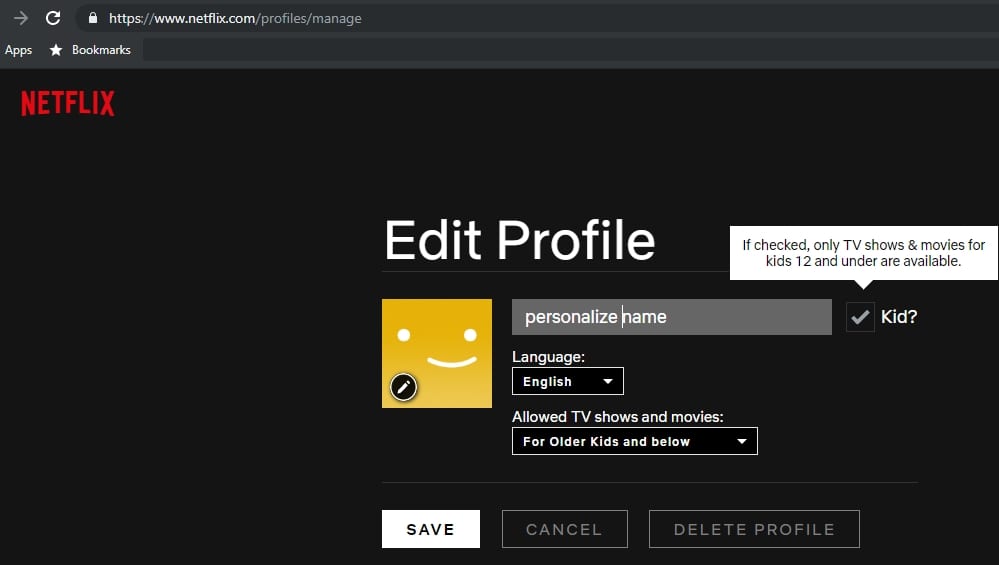
And by selecting kids 12 and under when creating a profile, your kids can have their own profile too. They can safely and easily browse through kid-friendly TV shows and movies with the help of their favourite characters.
NOTE: Netflix profiles cannot be created on devices older than 2013.
How Do Profiles Work On a Netflix Account
You can use a profile to customize the Netflix experience for each member of your family. The profile will store the unique TV shows and movies the user enjoys. Each profile has its own:
Maturity level
My List*
Recently Watched list*
Ratings*
Language preference*
Playback settings
Personalized TV show and movie suggestions
*Not available on Kids profiles via computers.
But if your device requires an activation code, you won’t be able to switch between profiles, or create a new profile. If you have a specific profile that is your favourite, you can set it on the Netflix website as your favourite. Then you can activate it for the specific device on Netflix.com/Activate. If you want to switch profiles on the older devices, you must sign out and reactivate it as your preferred profile.
How to Create a Profile
Select Manage Profiles from the menu on the Netflix app or browser. You must specify a different name for each profile. If you can’t create a new profile from your mobile device, log in on Netflix.com via a computer. You can add a maximum of five profiles per account.
How to Customize or Delete a Netflix Profile
You can delete a profile from your device on the Netflix app, and change the profile icon. But to customize it extensively, such as changing the language settings or maturity level, you must log in on Netflix.com via a computer. Click on the Manage Profiles link and select the profile you want to customize or delete. Make the required changes, and click on Save.
Please note: once you’ve deleted a profile, you will no longer have access to the specific viewing history linked to it. You can’t delete the main profile linked to your Netflix account.
How to Set Maturity Limits on a Netflix Profile
Some devices will allow you to set the maturity levels for a profile. Each individual profile can have its own specific maturity rating limit. Log in to Netflix.com from a computer browser if you can’t edit the profile on your device.
The parental control feature is under the drop-down menu called Allowed TV Shows and Movies. You can also make a specific profile kid-friendly by choosing the Kid setting when editing the profile.
Please note: a profile cannot be password protected. The parent/guardian must make sure that the Netflix-enabled device is set on the right profile for kid-friendly viewing.
https://localdstvinstaller.co.za/wp-content/uploads/2019/05/netflix-how-to.png600600LocalDSTVhttps://localdstvinstaller.co.za/wp-content/uploads/2018/02/no-300x141.pngLocalDSTV2019-06-18 14:15:432019-11-21 10:38:14Netflix How To | Personalize your Netflix Account
Why can’t I stream Netflix in HD (High Definition)? If you are on the Netflix basic plan, you will only have access to Standard Definition (SD) viewing. Netflix offers three streaming plans. The plan you choose will determine how many people can stream series and movies from Netflix at the same time, as well as the streaming quality.
The Basic Plan lets one person stream series and movies from Netflix, in Standard definition (SD). The Standard Plan lets two people stream series and movies from Netflix, in High definition (HD) when available.
The Premium plan lets up to four people stream series and movies from Netflix, in High definition (HD) when available. Additionally, select titles will be available in Ultra HD 4K to those who are using new HD compatible devices.
You can change your plan at any time. To do so, visit netflix.com/changeplan. No matter what plan you choose, you will have unlimited access to all the TV shows and movies available on Netflix. And you can watch them on any Netflix ready device. Plus, you can install the Netflix app on as many devices as you want.
What is the Difference between Standard Definition (SD) and High Definition (HD) Viewing?
The Standard Definition (SD) video resolution is classified as 480p or 480i. The High Definition (HD) is 720p, 1080i, or 1080p. And Ultra HD 4K is 4096p. Your choice of video resolution will greatly influence the quality of your viewing experience, especially on larger format screens.
What Is Video Resolution?
The video resolution is based on how many pixels it takes to make up one frame of the video. A pixel is the smallest measuring unit of a picture. The more pixels in a frame, the clearer the image will be.
What Do The Numbers Mean?
Resolution is determined by the height of an image. Working on a 16:9 aspect ratio, a 1080 resolution picture is 1080 pixels high, and 1920 pixels wide. So that means that in total the image has 2,073,600 pixels
What Do the “I” And “P” Mean?
The “I” stands for “interlaced” and the “p” for “progressive scan”. Interlacing is a video viewing trick. Your eye thinks you’re seeing the full image in motion, but you are in actual fact only viewing every other line of the image. Your eyes will fill in the gaps automatically. This is a video streaming technique used to double the perceived video frame rate, without taking up extra bandwidth.
Progressive scan draws each line in sequential order, one at a time. A single frame is “painted” every 1/60th of a second. This means that twice the detail can be sent in the same time as an interlaced system. The image is more detailed and you’ll notice less flickering, a common flaw of interlaced scanning.
SD Resolution
SD is the standard quality resolution. Often it refers to 480 pixel height in an image. A single frame has more detail than a 144p, 240p, or 360p image. But less detail than a 720p or 1080p frame. You don’t want to drop below 480 for video streaming.
In the late 20th century it became the standard for most broadcast television, as well as DVD’s. The 480p is the common standard for digital video.
Streaming in Standard Definition (SD)
On the internet, a lot of uploaded videos and video streams are limited to the 480p standard definition format. But with the advancement in technology, the 480 resolution will soon be phased out by higher quality formats. You will need to ensure that your equipment is upgraded to handle the higher resolution streaming.
HD Resolution
HD (high definition) is a higher definition resolution. The pixel height is 720 or 1080 pixels. Each frame is displayed with more detail than the standard definition resolution. 720p is the bottom range of the resolution type. It’s often called “standard HD” or “HD ready”.
720p is the usual resolution used on the internet. Most modems will have 720p capabilities. The 720i isn’t a HD media standard in the industry, because of a lack of demand for it.
The 1080i and 1080p resolutions are called Full HD. These offer higher quality standards for HD streaming. Most television broadcasters prefer the 1080i format. 1080p is a more progressive format for video streaming content on internet platforms such as Netflix and YouTube.
When To Stream In High-Definition: SD vs HD vs 4K
The other HD resolution option, is Ultra HD 4K. It still refers to the pixel height, but rounds it up (or down) a little bit. Ultra HD 4K is usually either 3840 x 2160 pixels or 4096 x 2160 pixels. The second format is usually for big cinema screens.
4K is the latest craze in video resolution. The technology is still very new, on Netflix for example not all shows are available in this format yet. For now you can consider switching to the normal HD resolution for a higher viewing quality. But by 2024, an estimated 50% of American households will have 4K-enabled televisions.
If you are viewing video streaming content on a smaller screen, you can consider sticking to the SD resolution. But once you’ve compared the quality difference between SD and HD, you won’t easily switch back to SD.
https://localdstvinstaller.co.za/wp-content/uploads/2019/05/netflix-how-to.png600600LocalDSTVhttps://localdstvinstaller.co.za/wp-content/uploads/2018/02/no-300x141.pngLocalDSTV2019-06-18 13:55:532019-11-21 10:38:21Netflix How To | Choose a Netflix Streaming Plan
Netflix is always adding more — new releases, TV shows, hidden gems, classic movies. Plus, Netflix Originals like “Lilyhammer” and “House of Cards”. Here are some ways to stay on top of the latest and greatest.
If you’ve been a Netflix member for more than a month, you’ll see a Recently Added row that has shows and movies added to Netflix in the previous 30 days. The New Releases row on Netflix shows you the titles that were first released, either in the movie theatre or on TV, in the past year and a half.
You can also follow Netflix on Facebook or Twitter, where they regularly feature new Netflix TV shows and movies. If there’s a new season of a TV show you’ve been watching, you can opt to receive an email notification about it.
While Netflix continuously adds titles to their collection, the rights to stream particular titles also expire. When you’re browsing Netflix, you will see a notification if a show’s scheduled to go offline, so you have the chance to enjoy it before it becomes unavailable.
Netflix Shows and Movies Lists on Different Devices
On your Netflix homepage, you will find various category lists of TV shows and movies. Depending on the platform you are using to access Netflix, these lists will vary. These lists include Award-winning TV Shows, Trending Now, New Releases, Netflix Originals, Popular on Netflix, Award-winning US TV Shows, Off the Beaten Path, Hollywood Movies, Witty TV Dramedies, and more.
You will also see lists of suggestions, based on other series or movies you watched on Netflix. These lists are a handy way to keep up to date with the ever-changing offerings on Netflix. You can also opt in to Netflix email notifications, under your account settings. Scroll down to the My Profile section under the settings, select Communication settings and activate the Now on Netflix option. You will receive email notifications with information on newly added movies, TV shows, and seasons. Plus, it will also include personalized suggestions and alerts.
https://localdstvinstaller.co.za/wp-content/uploads/2019/05/netflix-how-to.png600600LocalDSTVhttps://localdstvinstaller.co.za/wp-content/uploads/2018/02/no-300x141.pngLocalDSTV2019-06-18 12:56:162019-11-21 10:38:26Netflix How To | Find What’s New On Netflix
Netflix stepped onto the entertainment scene in 1997, and they keep ruffling feathers in the entertainment industry. And in 2013, Netflix also decided to start creating their own shows. The innovative company’s first big hit was House of Cards. Since then, they’ve rolled out plenty of other original hits.
From traditional series, to documentaries – the Netflix production house is gaining more momentum by the minute! They produce some in-house. And others are co-produced in collaboration with other studios. The following is a list of the current best original Netflix series to binge watch.
American Vandal
Seasons: 2 Genres: Teen TV Shows, TV Comedies, Crime TV Shows Age restriction: 16+ Starring: Tyler Alvarez, Griffin Gluck, Jimmy Tatro
Deadpan, raunchy, irreverent
27 cars are vandalized in a high school faculty parking lot, with crude phallic images. The school’s resident slacker and class clown is pinpointed as the perpetrator and expelled. But two other student’s decide to scrutinise the incident. A documentary-style investigation ensues, and everyone is a suspect…
The series is mockumentary, satirically poking fun of true-crime documentaries such as Making a Murderer and Serial. Focusing on the usual “Did he really do it?” angle creates a suspense-filled and binge-friendly series.
Chef’s Table
Seasons: 6 volumes Genres: Food & Travel TV, Docuseries, US TV Shows Age restriction: 16+
Have you ever wondered about the day-to-day responsibilities and experiences of well-known chefs? This documentary web series focuses on various successful restauranteurs and features their personal stories, mixed with culinary content.
It is presented in the traditional documentary style, which can become a bit dull at times. But the intriguing emotional backstories will offer you a greater appreciation for the world of fine dining. A few of the memorable chefs include Massimo Bottura (season 1), Dominique Crenn (season 2), and Ivan Orkin (season 3). It’s a refreshingly break from the reality show competition style cooking shows. There’s also a Chef’s Table France to explore.
The Crown
Seasons: 2 Genres: Political TV Shows, Period Pieces, British TV Shows Age restriction: 16+ Starring: Claire Foy, John Lithgow, Matt Smith
The Crown is a high-calibre British period drama, in the league of Downton Abbey. It follows the still-reigning Queen of England, Queen Elizabeth II (91) across the various periods of her life. The series starts with her marriage to Prince Philip of Edinburgh, 1947.
The series is a big hit, with great historical accuracy. It follows an interesting format, with the role of Queen Elizabeth and other main characters recast from season to season. In the first two seasons Claire Foy portrays Queen Elizabeth, alongside Vanessa Kirby and Matt Smith (Dr. Who). Netflix confirmed that Olivia Colman (Peep Show) will be taking over in season three, with Helena Bonham Carter as Princess Margaret. Netflix wants to produce six seasons in total (60 episodes)
Daredevil
Seasons: 3 Genres: TV shows based on Comics, Crime TV Shows, TV Action & Adventure Age restriction: 18+ Starring: Charlie Cox, Deborah Ann Woll, Elden Henson
Gritty, dark, exciting
One of many Marvel shows on Netflix. Charlie Cox in the title role creates a firm foundation for the series. It is similar to Christopher Nolan’s Batman movies, focusing on the darker side of Marvel Studios’ superheroes.
A blind vigilante dedicates his days to protect Hell’s Kitchen in New York City, as a lawyer. And at night he continues to do the same, but with a more violent edge to his protection methods. The supporting cast brings a good balance to the show. These include Deborah Ann Woll (True Blood) and Elden Henson (The Mighty Ducks). The colourful villains include Vincent D’Onofrio as deranged Kingpin, and Jon Bernthal as The Punisher. Unfortunately Netflix decided to cancel the series by season 3, as part of an attempt to reduce the number of co-produced series.
Dark
Seasons: 1 Genres: German TV Shows, TV Mysteries, TV Thrillers Age restriction: 16+ Starring: Louis Hofmann, Oliver Masucci, Jördis Triebel
Mind-bending, chilling, ominous
This one is perfect for a serious show lover, with a dose of the dramatic. It’s a foreign-language series, in German. But it will be worth your while to follow along with the subtitles. The storyline might remind you of Stranger Things, although Dark has much darker undertones.
It’s set in Winden, a small town covered in eternal shadowy clouds. The mysteries include missing children, strange laboratories, and supernatural occurrences. This might sound like a very predictable formula, but you will be pleasantly surprised by the twists and turns. Multiple storylines are weaved together, so get ready to concentrate and follow the complicated life in a small town.
Dear White People
Seasons: 2 Genres: Social Issue TV Dramas, TV Dramas, TV Comedies Age restriction: 16+ Starring: Logan Browning, Brandon P. Bell, DeRon Horton
Witty
In 2014 a forward-thinking young director, Justin Simien, created a film depicting the challenging dynamics in a fictional Ivy League college. Winchester University (predominantly white, with a scattering of black students) served as a blank canvas to explore issues of group and individual identities in the school’s social ecosystem.
Netflix sat up and took notice of the remarkable film, and approached Justin to expand on the concepts, fleshing it out into a series. Its second season kicked off in 2018, and the show is scheduled for a third season as well. Sam White (Logan Browning) creates a stir among the students with her outspoken radio show, called Dear White People. The director manages to tackle controversial topics in a tactful way. And the show offers different viewpoints on major issues such as identity, romance, socialization, and education.
Easy
Seasons: 3 Genres: TV Comedies, US TV Shows Age restriction: 16+ Starring: Aubrey Plaza, Judy Greer, Jane Adams
Understated, Witty
Created by Joe Swanberg (Win It All), the series is a collection of short stories about relationship challenges in the 21st century. The short 30-minute vignettes share stories from the lives of a wide variety of people in modern day Chicago.
The cast include big names such as Orlando Bloom, Dave Franco, and Emily Ratajkowski who inhabit the complicated characters with ease. Some stories might leave you wanting more, but the relatable stories are highly entertain, albeit short. Find out how other people deal with relationship barriers, ranging from redefining gender roles to figuring out communication across language divides.
GLOW
Seasons: 2 Genres: TV Dramas, TV Comedies, US TV Shows Age restriction: 16+ Starring: Alison Brie, Betty Gilpin, Marc Maron
Offbeat, witty, irreverent
The Gorgeous Ladies of Wrestling (GLOW) wowed audiences with their wrestling skills during the mid-80s. Netflix saw the entertainment potential to create a series about the show and the behind the scenes dynamics. Two seasons are currently available, and it is renewed for a third.
A desperate actress (Alison Brie) joins a low-budget women’s wrestling program, that’s run by a dodgy director (Marc Maron). She’s joined by a crew of colourful, wacky fellow performers. Follow their journey of dealing with personal issues while attempting to create a successful show. Brie and Maron are joined by Betty Gelpin, Sydelle Noel, Britney Young, and British rocker Kate Nash. Together they create an entertaining glimpse into the strange entertainment world of ladies wrestling.
Godless
Seasons: 1 (limited series) Genres: TV Dramas, US TV Shows Age restriction: 16+ Starring: Jeff Daniels, Michelle Dockery, Jack O’Connell
Gritty, dark
Created by the two-time Oscar nominee, Scott Frank (Out of Sight, Logan). This Western drama miniseries racked in a handful of Primetime Emmy Award nominations for Netflix. The perfectly planned seven-episode story arc emerges you in the 1880s. In a small mining town a catastrophic mine accident kills almost all the men in the town. The women left behind must pick up the pieces and rebuilt their lives.
They are doing just fine until a mysterious stranger decides to use the town as his hideout. The gunslinger is on the run from his former mentor, a bloodthirsty leader of an outlaw gang. Jeff Daniels plays the cruel gang leader on the hunt. Michelle Dockery (Downton Abbey) and Merritt Wever (Nurse Jackie) plays a pair of pioneer women who upholds the town. The cinematography is stunning, the dialogue witty, and awesome action scenes pull it all together beautifully. Dockery, Wever, and Daniels were nominated for their performances. Wever and Daniels both won their Emmy nominations categories.
The Haunting of Hill House
Seasons: 1 Genres: TV shows based on books, TV Mysteries, TV Dramas Age restriction: 16+ Starring: Michiel Huisman, Carla Gugino, Timothy Hutton
Chilling, scary, suspenseful
Stephen King described this series as “close to a work of genius”. Horror film writer and director Mike Flanagan created it, who produced Ouija: Origin of Evil and Oculus. The series is an adaptation of a 1959 novel by Shirley Jackson, with the same name.
It follows the family who moves into the Hill House, dreaming about renovating it. But soon each family member has their own scary paranormal encounter, which will haunt them for years to come. And it all ends with a mysterious tragedy, that finally drives the family out of the haunted house. Get ready for timeline-hopping as you explore Hill House through each family member’s eyes and then catch up with them years later. It’s one of the best horror stories of recent years.

https://localdstvinstaller.co.za/wp-content/uploads/2018/03/netflix-logo.png316680LocalDSTVhttps://localdstvinstaller.co.za/wp-content/uploads/2018/02/no-300x141.pngLocalDSTV2019-06-10 14:40:462019-11-21 10:38:30The Best Netflix Original Series
You can cancel your Netflix membership at any point during the month. The cancellation will be effective at the end of your current billing period. This means that even after cancelling your subscription, you will still have access to your account until the end of the billing period.
You can restart your Netflix membership at any time. All your account details and viewing preferences will be stored for 10 months after cancellation.
How to Cancel Your Netflix Subscription
You will have to log onto Netflix.com to cancel your subscription, you cannot unsubscribe from the Netflix app.
Step 1: click on the menu in the right-hand corner (hover on your profile picture or click on the down arrow)
Step 2: click on Account
Step 3: under the first section, “Membership & Billing” click on “Cancel Membership”
Step 4: decide if you want to stay subscribed to the Netflix mailing list by ticking or unticking the opt-in box
Step 5: click on “Finish Cancellation”
What if I Don’t See the Cancel Option on My Netflix Account
If for some reason you don’t see the “Cancel Membership” button on your Account page, you will have to cancel your Netflix subscription through your billing company.
What Happens If You Cancel Netflix Early?
Your account will only automatically close at the end of your billing period. Even if you are still on your free trial, you won’t be charged for streaming content after you have activated the cancellation process. But you can continue watching shows and movies until your account closes down.
Click on the Billing details link on your Account to see when your account will end.
Image by igeeksblog.com
Will I Have To Start All Over If I Restart My Netflix Account?
If you reactivate your Netflix account within 10 months of the cancellation, you will just pick up where you left off. This includes all your account details ratings, and recommendations.
Will I Be Charged If I Cancel Netflix?
After cancellation, you will not be charged any extra membership fees, unless you reactivate your account.
My Netflix Account Is On Hold What Happens If I Cancel?
In this case your account will be immediately closed without any further access, even if you cancelled before the end of your billing period. But you will not be charged again unless you reactivate your account.
What Happens If I Cancel Netflix And I Have A Gift Card/Promotional Balance On My Account?
Once the promotional balance is consumed, your Netflix account will be cancelled. After your account cancellation request, you can continue streaming as long as the promotional balance lasts. Once it is finished, your cancellation will be activated.
Can I Rejoin If I Cancel Netflix?
You can reactivate your account at any time from the Account page. Make sure you remember your login details.
https://localdstvinstaller.co.za/wp-content/uploads/2019/05/netflix-how-to.png600600LocalDSTVhttps://localdstvinstaller.co.za/wp-content/uploads/2018/02/no-300x141.pngLocalDSTV2019-06-03 16:32:442019-11-21 10:38:37Netflix How To | How Do I Cancel My Netflix Subscription?
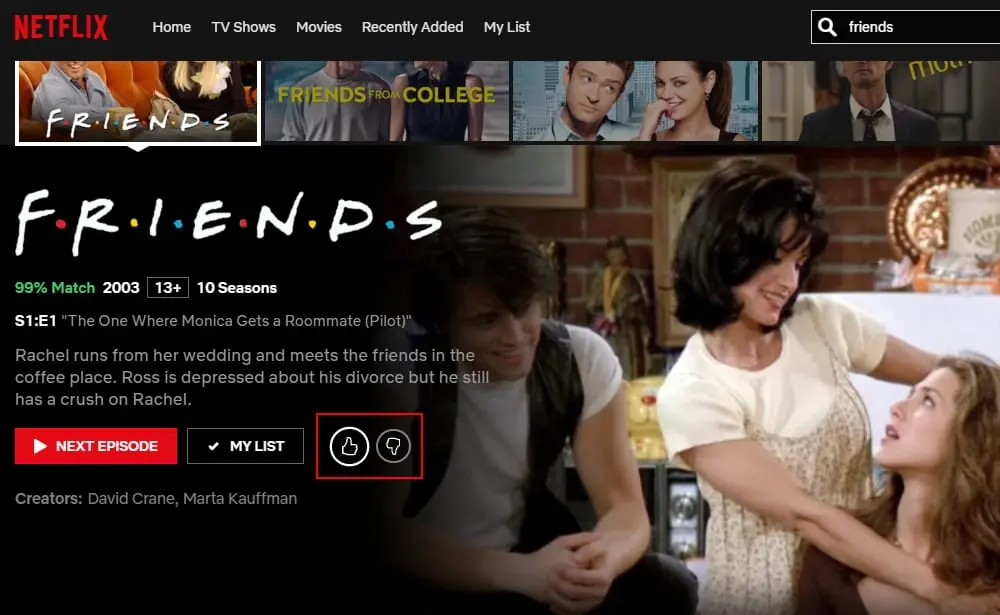
Netflix changed its rating system in 2018 to an easy “thumbs up” or “thumbs down”. This replaces the old traditional rating system of five stars. Together with the rating system, Netflix’s built-in recommendations algorithm will start suggesting shows for you to watch, based on your ratings and ongoing viewing history. The more you watch Netflix, the more relevant recommendations will pop up.
Does The Netflix Ratings Affect My Recommendations?
There are literally thousands of shows and movies available for streaming on Netflix. By rating the shows and movies you watch, you will help the Netflix algorithm to get a better idea of your personal likes and dislikes.
The recommendation algorithm works on a few factors: all the shows and movies available; your personal streaming history, and any ratings you made; as well as the combined ratings of other Netflix members with similar tastes to yours.
These factors are combined to create the percent match score when you type in a title. And this score is unique to each Netflix user. It gives you an indication of how likely you are to appreciate the titles.
Tip: scroll to the bottom of the Netflix home page to see Top Picks for you and shows/movies recommended because you watched similar ones.
How do the Netflix ratings work?
Every time you leave a rating on a show or a movie, the Netflix recommendation algorithm takes notes. You are teaching Netflix more about your personal viewing likes and dislikes. This way the suggestions that Netflix shows you on the home screen can be more tailor-made to your personal viewing preferences.
When you go into your account and click on Ratings under the My Profile, you can see all the shows that you have rated. The old rating system is still saved here, showing you the star rating system previously used to personalize your Netflix experience.
Some of the older devices used for streaming Netflix, such as Smart TV’s, set-top boxes, and Blu-ray players will still display the old star rating system. If you use any of these now to make a new rating, it won’t be saved. If you want to rate the show, you must log on to Netflix.com or access the shows from your mobile app.
Update Your Netflix Ratings
If you have not been rating the shows and movies you’ve been watching on Netflix, you can backtrack your streaming activity. Add a thumbs up or down now to activate the Netflix recommendations algorithm on your account.
Under the Account section, scroll to My Profile at the bottom, click on Viewing Activity. This will show you a list of the shows and movies you’ve previously watched on Netflix. Click on a show episode or movie to access it. Under the title look for the thumbs up and down icons and add your rating.
https://localdstvinstaller.co.za/wp-content/uploads/2019/05/netflix-how-to.png600600LocalDSTVhttps://localdstvinstaller.co.za/wp-content/uploads/2018/02/no-300x141.pngLocalDSTV2019-06-03 13:16:562019-11-21 10:38:43Netflix How To | Find Ratings & Recommendations
What do you do when someone is accessing your Netflix account without your permission? The first way that this can happen is if someone is using your Netflix account without permission because they know your login details. Or it could be that your account was hacked. Either way, there are a few steps to follow when you notice someone misusing your account. You firstly need to sign out of all the devices that are linked to your account. Next, you must change your password and make sure that your account is secure. Follow the steps below to make sure that you are the only one with access to your Netflix account.
Step 1: Log in to your Netflix account
Step 2: Go to the settings menu, at the top right, hover on the profile pic, or click the dropdown arrow
Step 3: Next select “Account”
Step 4: Under the “Settings” menu, click on “Sign out of all devices”
Step 5: Next click on “Sign Out”. Please note, it can take up to 8 hours to reset your logins
Photo by Business Insider
How to Change Your Netflix Password
After the login reset, change your password on your next login. This will prevent anyone from using your Netflix account without permission in the future. If you are experiencing issues with your password, click here for a reset link.
Step 1: Log in to your Netflix account
Step 2: Go to the settings menu, at the top right, hover on the profile pic, or click the dropdown arrow
Step 3: Next select “Account”
Step 4: In the first section click on “Change Password” next to your login email address
Step 5: Type in your old password
Step 6: Choose a new secure password. Tick the box “Require all devices to sign in again with new password”
Step 8: Lastly, click “Save”
Some people still experience issues even after they have logged out of all their devices. Watch the following video for an add-on protection element to secure your account.
https://localdstvinstaller.co.za/wp-content/uploads/2019/05/netflix-how-to.png600600LocalDSTVhttps://localdstvinstaller.co.za/wp-content/uploads/2018/02/no-300x141.pngLocalDSTV2019-05-29 12:53:382019-11-21 10:38:49Netflix How To: What do I do when someone is using my Netflix account without my permission?
Although Netflix is mainly a live video streaming service, they have heard the lamentations of the people and you can now download some of the content to watch offline. This is a great option if you have limited access to uncapped WiFi. Or if you are planning a trip to a location where you know the signal will be either weak or completely missing in action.
Now you can plan your Netflix binging sessions with downloaded episodes of your favourite series, if available for download, or stock up on a few movies for a weekend in a remote area.
How to Download Netflix Content
To use the download function of the Netflix service, you have to first download the Netflix app for your device. The download function is not available when using an internet browser to view Netflix content.
Step 1: open the Netflix app on your device. Access the menu in the top left corner or look for “Downloads” at the bottom of the screen.
Step 2: click on “Available for Download.”
A list of all the shows and movies available for download appears here. You can also use the search function to sift through the content if you are looking for something in particular. If a show or movie is available for download, a down-facing arrow will appear next to the episode or after the description of the movie. If there is no arrow, it’s not available for download.
Step 3: choose the program you want to download and tap on the arrow to start downloading. You will need an active internet connection for the duration of the download.
Photo by theverge.com
How to View Downloaded Netflix Content
Once your download is complete, it will be stored on your device. Please note, the offline download is only available on the device you downloaded it on. You can then access the downloaded Netflix shows and movies without being connected to the internet.
From the menu at the top right, click on “My downloads”. Or click on “Downloads” at the bottom of your screen. The Netflix content that you have downloaded will appear here. On your smartphone a blue icon will appear next to the downloaded content. You can access the episode or movie the same way as online Netflix content.
https://localdstvinstaller.co.za/wp-content/uploads/2019/05/netflix-how-to.png600600LocalDSTVhttps://localdstvinstaller.co.za/wp-content/uploads/2018/02/no-300x141.pngLocalDSTV2019-05-29 12:29:292019-11-21 10:38:54Netflix How To | Download Netflix Shows & Movies
What devices are the best for watching Netflix? Because it’s an online video streaming service, almost any internet enabled device can connect to the Netflix platform. These include Smart TV’s, Blu Ray players, computers, phones, tablets, home theatre systems, HDTV’s, gaming consoles, and set-top boxes.
Download the Netflix app, or directly stream from a Netflix supported web browser.
Netflix Supported Devices
Netflix supports the follow devices and brands. Is yours not included? Check to see if you can access the internet from it, and open Netflix on a browser or directly download the app.
Streaming Media Players:
Supported: ChromeCast and AppleTV
The plug&play feature works perfect for streaming Netflix. The latest technology of media players and streaming sticks offer you an effortless way to transform your TV into a Netflix home theatre.
Smart TV’s:
Supported: Hisense | LG | Panasonic | Philips | Samsung | Sharp | Sony | Toshiba
Enjoy the handy built-in connection on the newest Smart TV’s. Netflix access is ready and waiting for you, without the need of an extra connectivity device.
Tip: look out for the Netflix Recommended TV logo when choosing a Smart TV.
Game Consoles:
Supported: PS3 | PS4 | XBox360 | XBoxOne
You can switch between playing games and playing Netflix movies on a variety of game consoles.
Photo by cordcutters.com
Set-top Boxes:
Just switch channels and easily jump between watching live television and a Netflix show. The set-top boxes (STB’s) directly connect with your television. More and more paid TV providers now also support Netflix.
Blu Ray Players:
Supported: LG | Panasonic | Samsung | Sony
The Blu-ray player has revolutionized home entertainment theatre systems, and now you can also stream Netflix from them to immerse yourself in the sights and sounds.
Smartphones and Tablets:
Supported: Android | Apple | Windows Phone
Take Netflix with you, wherever you go. By downloading the Netflix app on your smartphone or tablet, you can watch Netflix from anywhere. You can also download Netflix shows to watch offline.
PC’s and Laptops:
Any computer with internet access can connect to Netflix. Most of the popular browsers are optimized for Netflix viewing, whether you are using a PC or a Mac.
https://localdstvinstaller.co.za/wp-content/uploads/2019/05/netflix-how-to.png600600LocalDSTVhttps://localdstvinstaller.co.za/wp-content/uploads/2018/02/no-300x141.pngLocalDSTV2019-05-29 12:00:532019-11-21 10:39:00Netflix How to | With what devices can I connect to Netflix?
If multiple members of your family has access to your Netflix account, you can change the parental control to make sure that younger members are not exposed to inappropriate content. There are two levels of control: account-level (hard controls) and profile-level (soft controls).
For the Hard Controls a PIN code will be required for certain maturity ratings. You can create a 4-digit PIN to enter if a specific show or movie has a maturity level restriction. This way your child will not be able to access inappropriate content.
The Soft Controls are linked to the profile. This way the entire profile is linked to a specific maturity level. Your child will then only have access to specific age restricted content.
How to Create a PIN on Your Netflix Account
Before you can select age restrictions, you must first create a PIN for your account. PIN settings are only available on devices older than 2013.
Step 1: Login to your account on a web browser
Step 2: Select “Account” from the menu on the top right
Step 3: Under the “Settings” section, select “Parental controls”
Step 4: To change it, you will need to enter the account password
Step 5: Click on “Continue”
Step 6: Choose a four-digit numbered PIN, letters are not permitted
Step 7: Choose the protection level from the options:
ALL (Little Kids)
7+, some 13+ (Older Kids)
13+ (Teens)
16+, 18+ (Adults)
Activate the PIN on Your Netflix Account
The main account holder can choose how the PIN will be used for the account. It can be linked to the maturity ratings. Or it can be linked to specific movies and shows.
Under the “Restrict by Maturity Level” select the top level of access allowed:
Step 1: Select the first dot to PIN protect All content
Step 2: Select the second dot to PIN protect Older Kids and up content
Step 3: Select the third dot to PIN protect Teens and up content
Step 4: Select the fourth dot to PIN protect Adults content
Step 5: Select the fifth dot to switch PIN protection off
Under the “Restrict Specific Titles” section you can start typing a specific show or movie name. Select it from the list to add to your restricted content. You can remove it again by clicking on the little x that appears to the right of the added title.
After you have made the changes to the parental controls on your Netflix account, press “Save” at the top next to your PIN.
Please note: The parental control changes might not reflect on all devices immediately. If the new settings still don’t reflect, try to refresh the device, or log out and back in again.
Use a Profile as Parental Control
If you are in control of logging in to your Netflix Account on behalf of your children, you can use the “Kids” profile set up.
Step 1: Select “Manage Profiles” from the top right menu
Step 2: Click on the profile picture for “Kids”
Step 3: Under the dropdown “Allowed TV shows and movies” select the age restriction
For little kids only
For older kids and below
For teenagers you can create an extra main profile and select “for teens and below”.
When Do You Have To Enter your Netflix PIN
You will have to enter your PIN every time you try to watch a restricted show or movie. Sometimes ratings can also change between episodes of a specific series. Once you have entered your PIN you can continue watching without restriction until you switch profiles or sign out. If your account was dormant for a while, you must reenter your PIN before watching. You will also be required to enter the PIN if you are downloading restricted content.
On all iOS devices you must enter the PIN before you can download. On the Windows 10 app and Android devices you can start the download without the PIN, but it will block viewing of the restricted content afterwards.
How Do You Recover a Forgotten Netflix PIN
If you can’t remember your PIN there is an easy way to recover it. Your PIN links to your account login email.
Step 1: Under the login number blocks a link will appear saying “Forgot PIN?”
Step 2: A popup will appear with the Netflix Sign In page
Step 3: Enter your password
Step 4: Enter your new PIN and click on “Save Pin”
How to Remove a PIN from Your Netflix Account
Once you have created a Netflix PIN you can’t delete it again. The only way of deactivating it, is to set your parental controls to the highest setting of “Adults” (select the last of the green dots). If the change does not reflect immediately, try to switch between profiles, or sign out and back in again.
https://localdstvinstaller.co.za/wp-content/uploads/2019/05/netflix-how-to.png600600LocalDSTVhttps://localdstvinstaller.co.za/wp-content/uploads/2018/02/no-300x141.pngLocalDSTV2019-05-29 11:26:282019-08-28 14:19:16Netflix How To | How Do I Set Parental Controls on My Netflix Account?
There are three different types of Netflix Plans:
With the Basic Plan you can only view shows on one device at a time, and only in SD (Standard Definition). You can also only download shows and movies on one device. A Standard plan increases your devices to 2, for watching and downloading. And you can view content in HD (High Definition). On the Premium plan your devices are pushed up to 4, for watching and downloading. Plus, you can view content in HD and Ultra HD.
Netflix recommends the following connection speeds for each plan:
Basic — 3.0 Mbps; Standard — 5.0 Mbps; and Premium — 25 Mbps for Ultra HD.
Please note: memberships activated before 5/10/2014 will only have a one-screen or two-screen option linked to their account. To access the Premium plan, you must unsubscribe and reactivate your account.
How to Switch Between Netflix Plans
You can change your Netflix plan at any time during your membership, because it is billed month to month. If you want to change your Netflix plan, you need to log in to netflix.com and access your account details. Or click here for a direct link. You can’t change your Netflix plan directly from your streaming device.
Step 1: View the menu and select “Account”
Step 2: Find the “Plan Details” and click on “Change plan”
Step 3: View the available plans and choose a new one
Step 4: After selecting your updated plan, click on “Continue”
The changed plan rate will take effect with your next monthly payment. But you can access the new features immediately.
If you are paying for your Netflix account via iTunes, you must choose the new plan in the iTunes settings itself, not on the Netflix website.
Step 1: Sign in to your iTunes with your Apple ID and password.
Step 2: Click on the profile picture in the top right and choose “Account Info.”
Step 3: To access your account, type in your Apple ID again
Step 4: Select the “Subscriptions” section
Step 5: Confirm that you want make a change to your plan. It will be updated with your next payment
https://localdstvinstaller.co.za/wp-content/uploads/2019/05/netflix-how-to.png600600LocalDSTVhttps://localdstvinstaller.co.za/wp-content/uploads/2018/02/no-300x141.pngLocalDSTV2019-05-29 10:45:582019-11-21 10:39:13Netflix How To | How Do I Change My Netflix Plan?
Are you a big Netflix fan, but the South African content options frustrate you? By using a VPN you can unlock Netflix America in South Africa. You need to work around the geo-block on the website. But to access Netflix America, you still need to activate an account on the site.
We’ve gathered the best VPN’s to watch Netflix America in South Africa, so that you can use the Virtual Private Network (VPN) to expand your Netflix experience.
What is a VPN
A VPN changes your device’s IP address to not be linked to your location. It serves as an encrypted middleman between your device and the internet. All the information exchanged between your device and the internet, becomes encoded in the VPN’s encrypted tunnel.
Although this encryption process can interfere with the browsing speed, you gain cyber safety. Your online privacy is bulletproof when you use a VPN, because your IP address becomes anonymous. This means that an outside source can’t access your location or track your online searches.
image by avg_com
Choosing Between a Smart DNS and a VPN
The alternative option to watch Netflix America in South Africa, is to use a Smart DNS service. Both options will hide your device’s location to unlock geo-restricted content. But only the VPN will completely change your IP address.
The Smart DNS service can offer you quicker browsing/streaming speeds. But it can’t offer you the level of cyber safety that a VPN can give you. Because the VPN encrypts information, it affects the browsing/streaming speed. A Smart DNS service only reroutes/redirects a portion of your web traffic.
The biggest risk of a using a VPN provider, is when you choose to use a free VPN. You are allowing a third-party to stand between your device and your online browsing. It’s crucial to know exactly who you are dealing with. By carefully reading a company’s privacy policy, you can make sure that your cyber safety is in good hands.
A VPN provider must clearly state that they do not do any IP logging, or at least as little as possible. The VPN provider needs to adhere to their country’s privacy laws. And some governments require by law a certain amount of user information storage. So make sure you know where the VPN servers are located.
A free VPN service provider can also expose you to a man-in-the-middle-attack. You might think you are connecting directly with a specific website, but before your personal information reaches it, a third party first has access to it. Another issues can be traffic restrictions which will affect your browsing experience.
How to Use a VPN Safely
Rather use a paid VPN service provider. Make sure it has a strong encryption protocol as well as good privacy policies. You can also consider reading reviews from other users, to get a better idea of what the VPN provider will be offering you.
To create a special new IP address for your device, the VPN’s server has to be located in a specific country. Read up about the country’s privacy and cybersecurity laws before committing to using its services. The encryption process is notorious for slowing down the browsing speed. A reputable VPN service provider compensates for this by using top speed servers. Also, make sure that your VPN service provider stipulates a strict zero-logging policy.
The Best VPN’s To Watch Netflix America in South Africa
To directly compare the best VPN’s to Watch Netflix America in South Africa, a few factors are used:
Reliable service and fast speed
Zero logs and strong security
Easy unblocking of geo-restricted content
Location: 148 locations in 94 countries
America, Europe, Asia Pacific, Middle East and Africa
Pros:
Fast streaming speeds
Excellent class security and built-in privacy features
Can unlock a wide range of geo-locked sites
User-friendly apps for various device platforms
24/7 support with live chat to well-trained staff
Cons:
Pricey when compared to other VPN suppliers for South Africa
Supportedplatforms: Windows, Linux MacOS, Android and iOS
Rating:
9.8
Cost: $12.95 per month$99.95 for 15 months
Location:
America, Canada, Brazil, United Kingdom, France, Spain, Italy, Netherlands,
Austria, Poland, Switzerland, Germany, Sweden, Romania, Russia, Lithuania, Singapore, Hong Kong, Australia, and South Africa
Pros:
Good budget option for streaming and downloading
Can unlock a wide range of geo-locked sites
Excellent privacy and security protection
Zero-logging
Cons:
Desktop app can be tricky to use
Supportedplatforms: Android, Windows, iOS and MacOS
Rating:
9.4
Cost:
$11.95 per month
$69 per year
Location:
Canada, Mexico, North America, Austria, Belgium, Bulgaria, Czech Republic, Denmark, Asia India, Indonesia, Japan
Pros:
Usually good and stable streaming speeds
Does not keep any identifying logs
Speeds are mainly fast and stable
Unblock Amazon Prime Video, Hulu, Netflix, and BBC iPlayer
Cons:
Limited options for advanced configuration
Pricey for the product value received
Does not support cryptocurrency payment method.
Supportedplatforms:
Windows, Android, MacOS, and iOS
Rating:
7.6
Cost:
$9.95 per month
$60.00 per year
Location:
North America (57), South America (13), Europe (20), Asia (17), Oceania (7), Africa (9)
Pros
Almost no effect on connection speed
Good connection stability
Money-back Guarantee
Free version also available
Cons
No extensive database for problem-solving
Limited number of available servers
Supportedplatforms:
Windows, Android, MacOS, and iOS
Rating:
9.2
Cost:
$6.99 per month
$35.88 per year
Location:
United States, Canada, Mexico, Brazil, China, Hong Kong, Japan, India, United Kingdom, France, Germany, Netherland, Denmark, Ireland, Sweden, Spain, Switzerland, Russia, Czech Republic, Ukraine, Turkey, UAE, Iran, New Zealand, Australia
Pros
Fast streaming
User-friendly interface
Cons
Browsing activity is logged, but not linked to you personally
No advanced customization options
Supportedplatforms:
Windows, Android, MacOS, and iOS
Rating:
9.6
Cost:
$12.99 per month
$71.88 per month
https://localdstvinstaller.co.za/wp-content/uploads/2019/05/netflix-how-to.png600600LocalDSTVhttps://localdstvinstaller.co.za/wp-content/uploads/2018/02/no-300x141.pngLocalDSTV2019-05-07 16:12:592019-11-21 10:39:20Netflix How To | The Best VPN’s To Watch Netflix America in South Africa
If you are a big Netflix fan, but you are frustrated by the limited content on the South African site, you can watch Netflix America in South Africa by using a Smart DNS proxy. It’s a fast and easy way to unblock geo-restricted content.
What is a Smart DNS Proxy
A DNS (Domain Name System) is the system that turns a domain name into IP (Internet Protocol) address. For example, google.com becomes 8.8.8.8. Usually the DNS is located close to your computer’s IP address. And an IP address is assigned according to your location.
By using a Smart DNS, you can transfer your IP address location to another country. Unlike using a VPN, it does not permanently change your IP address, it simply relocates it. If you want to access Netflix America in South Africa, and not compromise your online streaming speed, it is recommended to use a Smart DNS Proxy. To access Netflix America you still need to pay for the content, but you must first hide your real location.
The Risks of Using a Free Smart DNS Service
Opting to use a free Smart DNS service can be tempting, but it is not advisable. Once you activate a DNS it acts as a proxy between your device and online browsing. Oftentimes free DNS proxies are used to mine data. The usage can range from innocent marketing purposes, to criminal intent to steal your personal information. It’s best to choose a reputable Smart DNS service.
Another problem with free Smart DNS services, is that they often don’t allow you to use https:// sites. The s in the http stands for secure. Without this, you are exposed online, without any guarantees of browsing safely. It is another way of compromising your cyber security and potentially exposing your personal information to cyber criminals.
Rather choose to use a paid Smart DNS service. You can investigate the company to know exactly who you are dealing with. The most important aspect of choosing a Smart DNS service provider, is to make sure you know where the proxy is located. Every country has different privacy and cybersecurity laws. In some countries it’s legal to sell your online browsing data. Plus, other countries are forced by their governments to store certain personal data of clients.
Carefully read through the company’s privacy policy. If you feel uncomfortable with certain stipulations, rather choose a different provider. Also, make sure that the DNS service has good security protocols. If it forbids the usage of https:// — do not choose it.
Supported Devices
PC, Mac Devices (Mac, iPad, iPod, iPhone, Apple TV), Android Tablet and Phone, Windows Phone, Amazon Fire TV, Kindle Fire, Google TV, Now TV Box,
Chromecast, Boxee,
Roku, Xbox One and 360, Xbox, Wii and Wii U, PlayStation 3/4, WDTV,
Smart TV’s: Samsung,
PC, Mac Devices (Mac, iPad, iPod, iPhone, Apple TV), Android Tablet and Phone, Windows Phone, Amazon Fire TV, Kindle Fire, Google TV, Now TV Box,
Chromecast, Boxee,
Roku, Xbox One and 360, Xbox Wii and Wii U, PlayStation 3/4, WDTV,
Smart TV’s: Samsung,
Netflix America only allows access to paid subscribers. All free trials must be upgraded.
Supported Devices
PC, Mac Devices (Mac, iPad, iPod, iPhone, Apple TV), Android Tablet and Phone, Windows Phone, Amazon Fire TV, Kindle Fire,
Boxee,
Roku, Xbox One and 360, Xbox, Wii and Wii U, PlayStation 3/4, WDTV,
Smart TV’s: Samsung,
LG, Philips, Sony
Services/channels:
255
Pros
Netflix America supported on every device on the Smart DNS network (after paid upgrade)
Add-on of VPN and Smart VPN
More than 200 Global VPN Nodes
Offers a fast DNS Response in South Africa, Australia, Asia, Europe, and America
Can support multiple devices
User-friendly web interface for changing Smart DNS regions.
Good discounted rates for longer subscriptions (year or more)
Netflix America only allows access to paid subscribers. All free trials must be upgraded.
Supported Devices
PC, Mac Devices (Mac, iPad, iPod, iPhone, Apple TV), Android Tablet and Phone, Windows Phone, Now TV Box, Sky HD Box, Boxee,
Roku, Smart TV’s: Samsung, LG, Philips, Panasonic, Sharp Smart, Sony, Toshiba
PC, Mac Devices (Mac, iPad, iPod, iPhone, Apple TV), Android Tablet and Phone, Amazon Fire TV, Kindle Fire, Google TV, Now TV Box,
Chromecast, Boxee,
Roku, Xbox, Xbox PlayStation 3/4, most of the Smart TV Models.
Netflix America not properly supported on the Smart DNS network.
Does not provide global DNS network
Channels supported could be broader
BBC does not work properly at all times
https://localdstvinstaller.co.za/wp-content/uploads/2019/05/netflix-how-to.png600600LocalDSTVhttps://localdstvinstaller.co.za/wp-content/uploads/2018/02/no-300x141.pngLocalDSTV2019-05-06 14:55:272019-11-21 10:39:27Netflix How To | The Best Smart DNS Proxy to Watch Netflix America in South Africa
If you want to watch Netflix America in South Africa, you can do so with a Smart DNS proxy or VPN (Virtual Private Network) Read our post how to watch American Netflix in South Africa to learn more about the different options available to access the Netflix America suite of programs in South Africa.
Smart DNS Proxy vs VPN
Before we look at the best option for you to choose, first a basic explanation of the difference between the two technologies.
A Smart DNS is used to access geo-restricted content. A DNS (Domain Name System) is the system that translates internet domain names into IP (Internet Protocol) addresses. For instance, google.com becomes 8.8.8.8.The DNS is usually located close to your computer’s IP address. If you use a Smart DNS provider, information will be redirected through a proxy server, which is not restricted by your current location.
Alternatively you can use a VPN which is used to add privacy and security to all your online activity. Setting up a VPN tunnel, your identity and online activity will be encrypted, meaning that outside sources can’t access your location or track your searches.
The biggest difference between a Smart DNS and a VPN is the privacy. A Smart DNS does not use encrypted connections. It also doesn’t change your device’s IP address. The DNS server location is used to gain access to blocked content.
Your connection to the internet will be faster with a Smart DNS because there is no delay to encrypt data, as with a VPN tunnel. If you are interested in cyber security, you will need to choose a VPN.
Smart DNS Explained
To access Netflix America in South Africa, you need to trick the service into thinking that you are in America. You will still need to pay for the content, creating a separate account for the American Netflix site.
If you are only concerned with streaming speed, you can use the Smart DNS technology to do this. By using a remote DNS server, you will be able to mask your location, but your private information will not be encrypted and your IP address not hidden.
VPN Explained
The VPN technology is a great way to protect your online privacy. Although using a VPN’s encrypted tunnel can slow down your browsing speed, it is a small price to pay to remain protected online.
A VPN service will create a new IP address for your device, which is not linked to your location, offering you access to Netflix America in South Africa. The Virtual Private Network (VPN) creates an encrypted middleman point between your device and the internet, where your IP address is changed and it becomes anonymous.
Choosing Between a Smart DNS and a VPN
Both these options will change or hide your device’s location to unlock geo-restricted content, so you can use either to watch Netflix America in South Africa. Your choice will depend on whether you are interested in online streaming speed or data security.
The Smart DNS will only reroute/redirection a portion of your web traffic, compared to a VPN which encrypts all of your online activity through the encryption tunnel. This function of the VPN will have an effect on the online streaming speed. If you are not concerned about online browsing anonymity, you can use a Smart DNS to access Netflix America in South Africa.
Risks of Using a Smart DNS Service
image by avg_com
You might be tempted to opt to use a free Smart DNS service provider. The DNS becomes the proxy between your device and the internet. This means that the proxy has access to your online activity. Many free proxies are used to mine data. It could be as innocent as gathering browsing information for marketing purposes, but some free Smart DNS proxies also use their service to steal your personal information. Rather use a reputable Smart DNS service provider.
With a free Smart DNS service you also don’t know who is providing you with the IP address codes. It could be generated by a cybercriminal organization or maybe a government surveillance program. While you are using the free Smart DNS service, you are giving up your personal information such as usernames and passwords, as well as bank account numbers.
Some Smart DNS services don’t allow you to use https:// sites. This is a safety feature of browsers, to give you cyber safety. The http:// sites expose your online activity, offering up your personal information to anyone that has access to the proxy. An unsecure Smart DNS service can also manipulate the website you visit, stealing cooking or injecting advertising. Oftentimes these ads can carry malware.
How to Use a Smart DNS Proxy Safely
It’s best to rather use a paid Smart DNS service. This way you know exactly who you are dealing with. A legitimate provider will offer you information about their whereabouts and openly offer you their operating procedures.
You can also do more research about the company through a thorough online search. If there are any security risks, you will be warned by other users that have used their services. It’s important to check in which country the Smart DNS provider is located. Each country has its own set of cybersecurity and privacy laws. In some countries it is legal to sell your browsing data.
Make sure you carefully read the company’s privacy policy. Even if it is a legitimate provider, you may be offering up certain privacy rights, affecting how the proxy provider will be dealing with your personal information. If at any time you feel uncertain of the company’s operating procedures, rather choose another one. Lastly, make sure that the DNS provider has good security protocols in place. If it forbids the use of https:// — do not use it. Some companies will even offer extra encryption protocols for better online security and secure connections.
Risks of Using a VPN
image by avg_com
Same as with Smart DNS proxies, if you choose to use a free VPN, you are at risk of your online security being compromised. It is crucial to read the company’s privacy policy, because you are allowing a third party to handle your online data.
The VPN offers you online privacy by agreeing to not do any IP logging, or at least as little as possible. If you choose to use a disreputable VPN service, you can’t tell what they are doing with the logs they might be keeping. A VPN provider must also adhere to the country’s privacy laws. Some governments require by law that some user information is stored. So make sure you know from which country your VPN service provider operates.
If you decide to use a free VPN service provider or one with a dubious privacy policy, you can be exposed to a man-in-the-middle-attack. This means you think you are connecting directly with a website. But a third party first has access to your personal information. Some VPN’s also have a lot of traffic restrictions, which can affect your browsing experience.
How to Use a VPN Safely
It is best to use a paid VPN service provider. You can research the company properly to make sure that you agree with all their privacy policies. Also read other people’s opinions of the company. A strong encryption protocol and good privacy policies will ensure a safe online experience.
Check up on your VPN service provider’s server network. To create a specific IP address, the VPN has to have servers located in that country. Once you know the country, you can read up about its cybersecurity and privacy laws. The servers also need to compensate for the encryption slowing down your internet connection. A reputable VPN service provider will have top speed servers. Lastly, make sure that the VPN service provider clearly states that it offers a strict zero-logging policy.
https://localdstvinstaller.co.za/wp-content/uploads/2019/05/photo-by-techtuts.co-How-to-Choose-Between-a-Smart-DNS-and-VPN.jpg600600LocalDSTVhttps://localdstvinstaller.co.za/wp-content/uploads/2018/02/no-300x141.pngLocalDSTV2019-05-03 13:13:352019-11-21 10:40:05How to Choose Between a Smart DNS and VPN?
https://localdstvinstaller.co.za/wp-content/uploads/2019/04/How-To-Watch-US-Netflix-In-South-Africa.jpg400600LocalDSTVhttps://localdstvinstaller.co.za/wp-content/uploads/2018/02/no-300x141.pngLocalDSTV2019-04-05 14:58:482019-04-09 11:32:07How to Watch American Netflix in South Africa